How to set up your clinic profile?
Configure clinic branding, contact information, and UPI payment settings for patient billing.
3 min read · Last updated September 2026
1. Navigate to Clinic Settings
Open your clinic administration area:
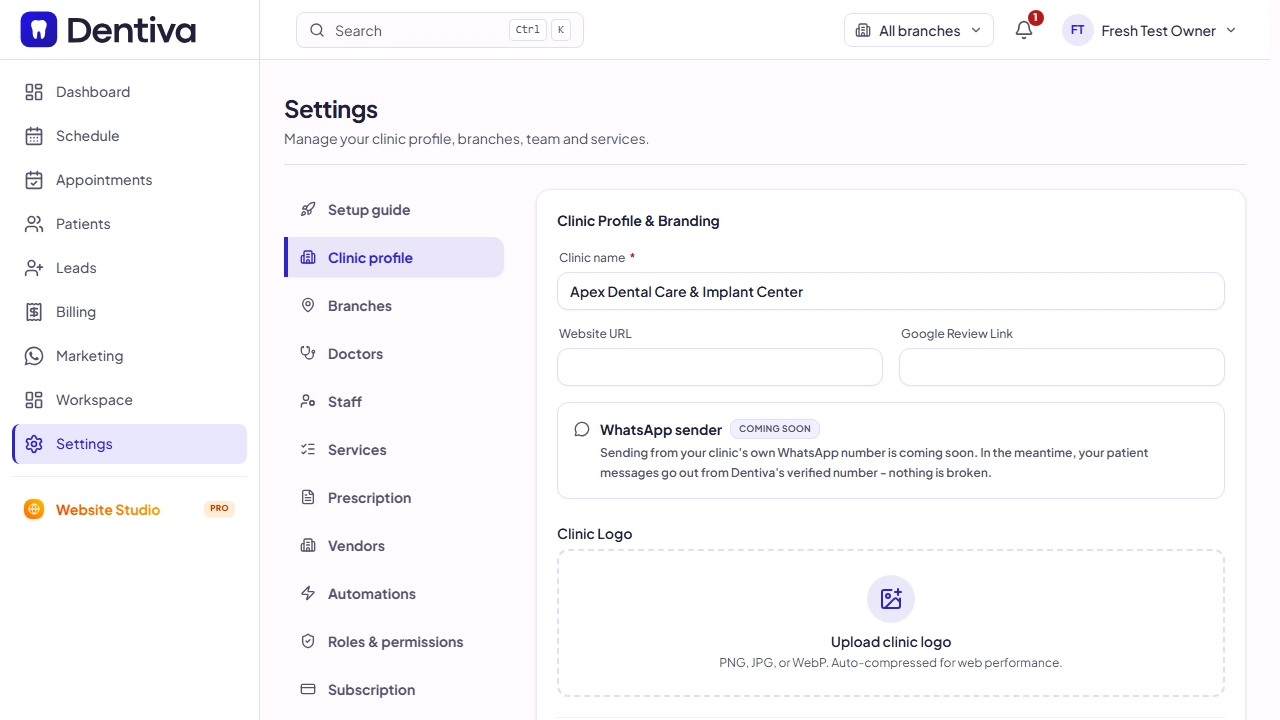
- In the left sidebar navigation, click on the Settings gear icon.
- Select the Clinic profile tab at the top of the Settings screen.
2. Fill in Clinic Profile Details
Enter your clinic details and upload your brand logo:
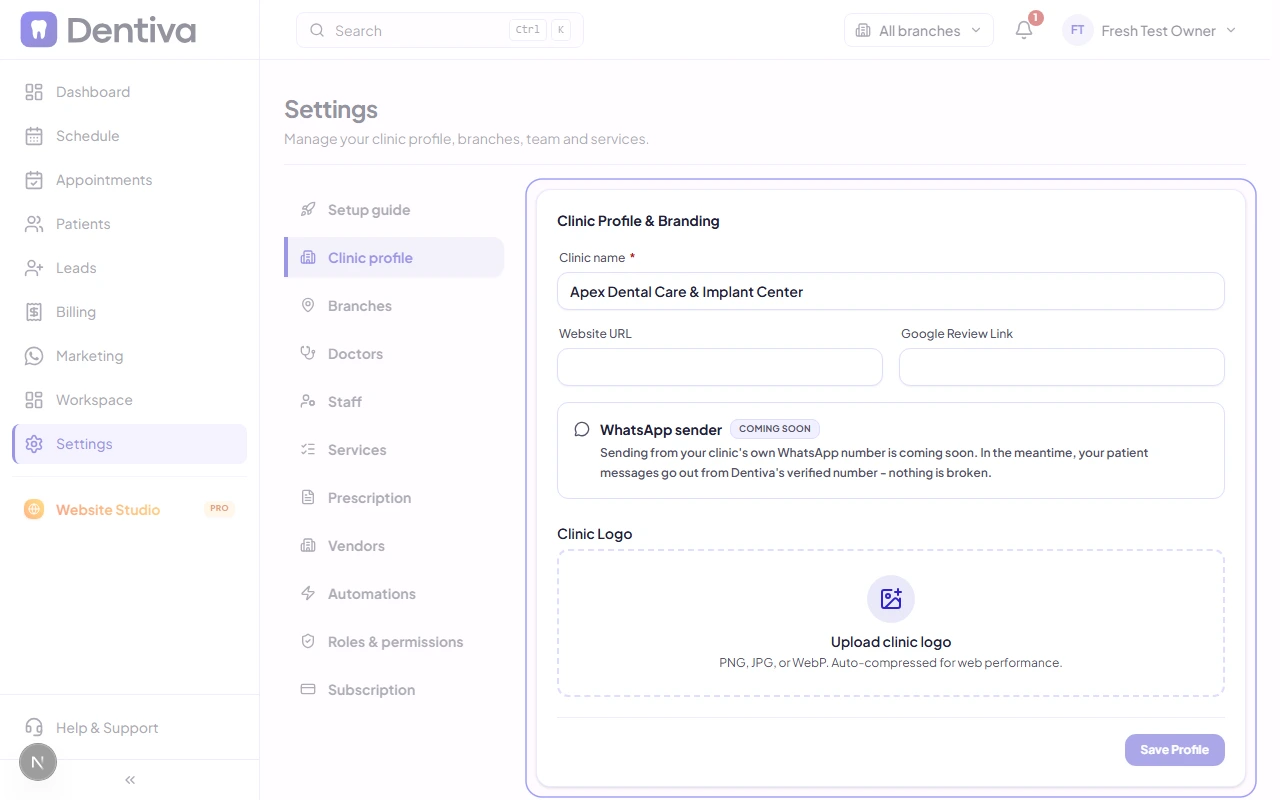
- Clinic Name: Type your clinic's full official name as you want it to appear on patient receipts.
- Website URL: Enter your practice website address (optional).
- Google Review Link: Paste your Google Maps review link so patients can rate your clinic after visits.
- Upload Clinic Logo: Drag and drop your clinic logo file into the upload box, or click to browse (PNG, JPEG, or WebP).
- Save Profile: Click the Save Profile button at the bottom of the card to save your branding.
3. Configure UPI ID for Patient Payments
Set up your digital payment details for instant QR collection:
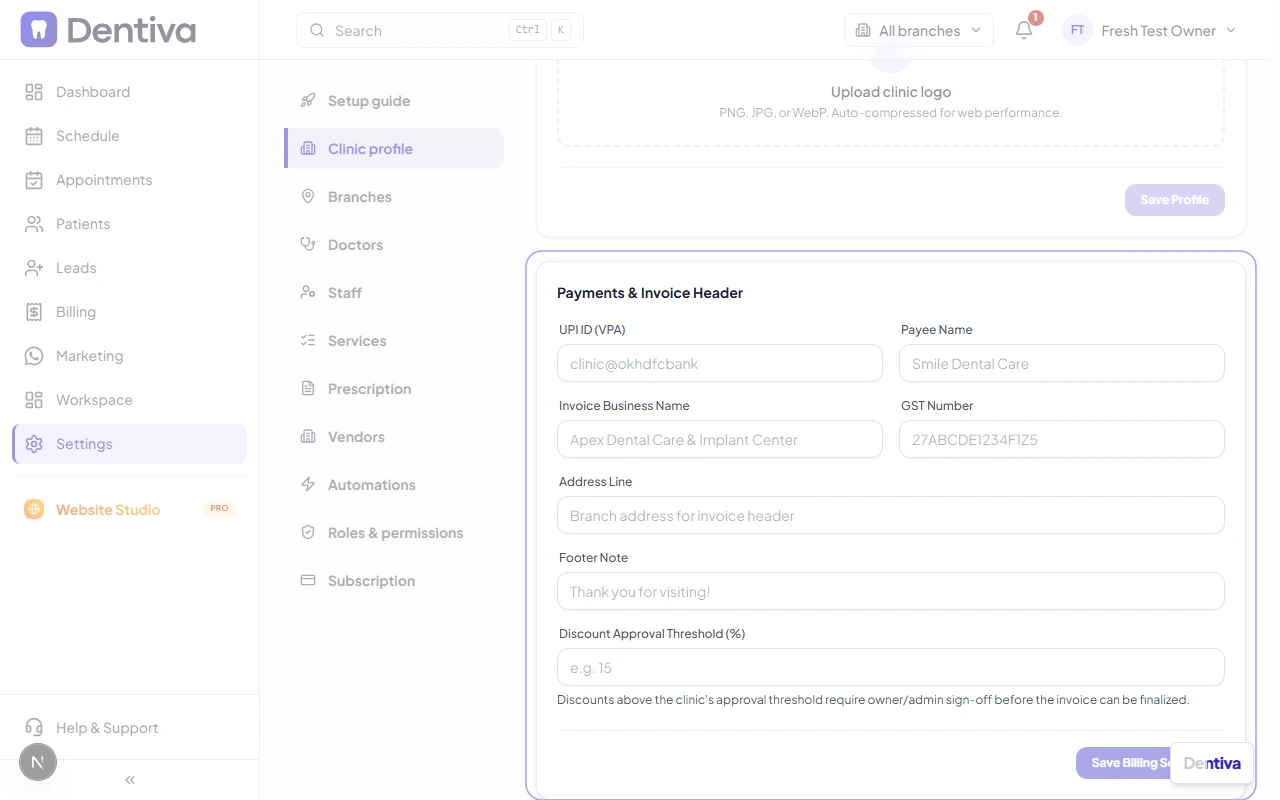
- Scroll down to the Payments & Invoice Header card on the same page.
- UPI ID (VPA): Enter your clinic's UPI address (for example,
apexclinic@okaxisordrsmith@icici). - Payee Name: Enter the exact bank account holder or clinic business name linked to this UPI ID.
- Save Settings: Click the Save Billing Settings button.
- Automatic Dynamic QR Codes: Dentiva will automatically generate a scannable dynamic UPI QR code pre-loaded with the exact invoice balance amount on all printed receipts and WhatsApp invoice links so patients can pay with one tap via Google Pay, PhonePe, or Paytm.
- Zero Gateway Fees: Payments transfer directly into your clinic bank account with zero payment gateway transaction deductions.