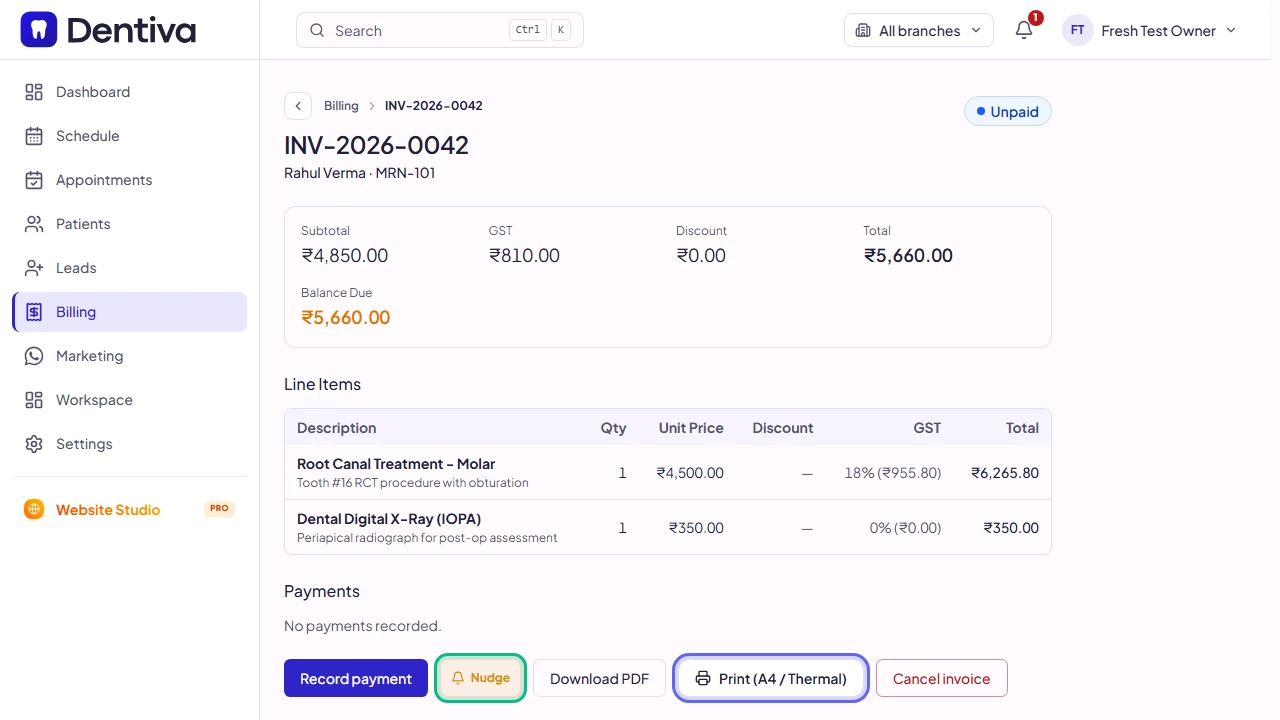
How to create and print an invoice?
Generate itemized treatment invoices, apply line or invoice discounts, and print or share digital receipts.
5 min read · Last updated October 2026
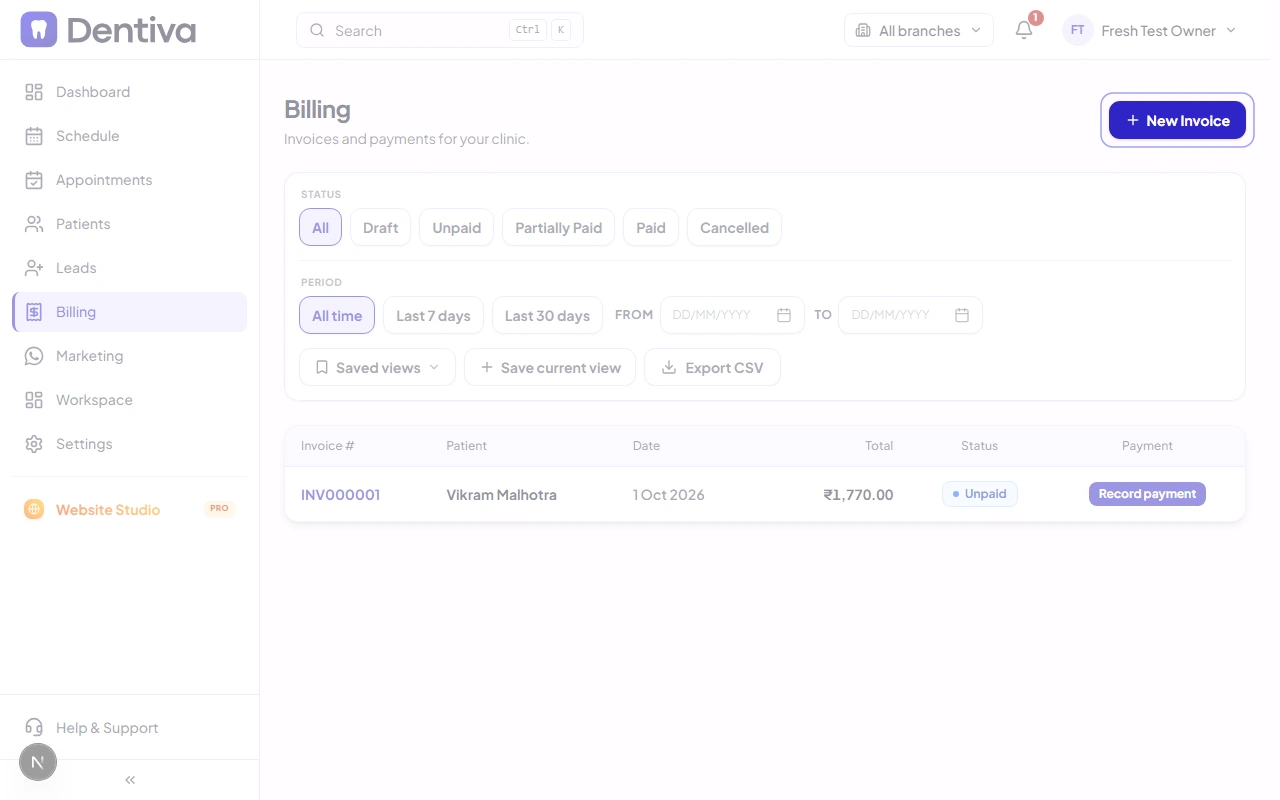
1. Open Billing or Patient Invoices Tab
Open the billing generator:
- In the left sidebar navigation, click on Billing, then click the + Create Invoice button.
- Alternatively, open any patient profile and switch to the Invoices tab.
2. Select Patient and Line Items
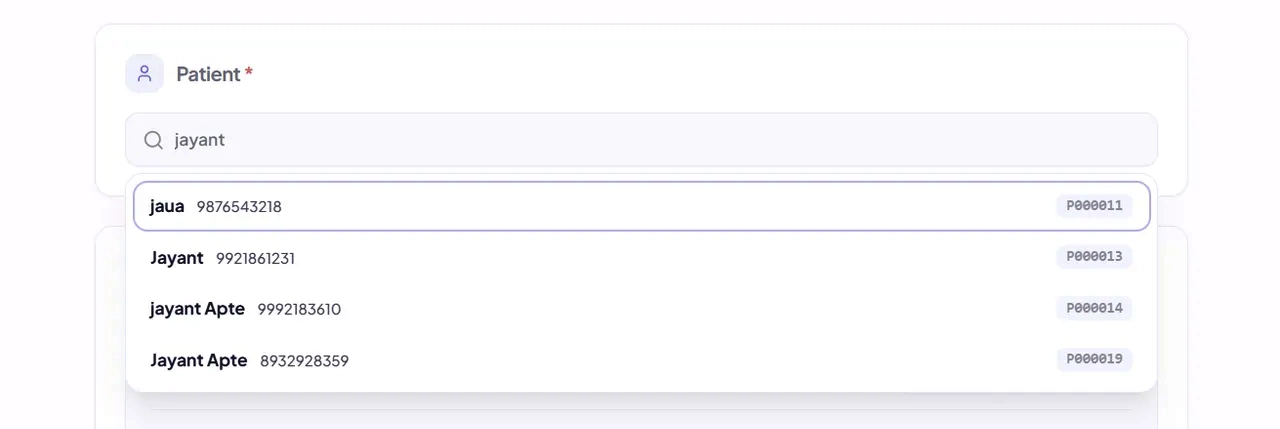
Select patient and add billable procedures or medicines:
- Patient Name: Search for and select the patient from your directory.
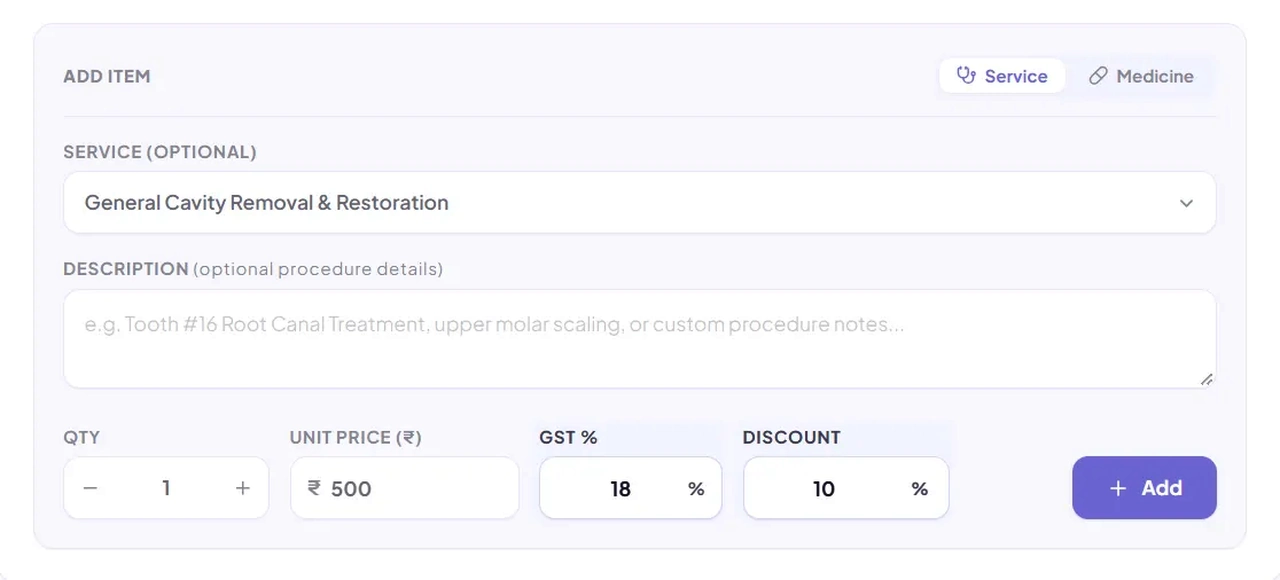
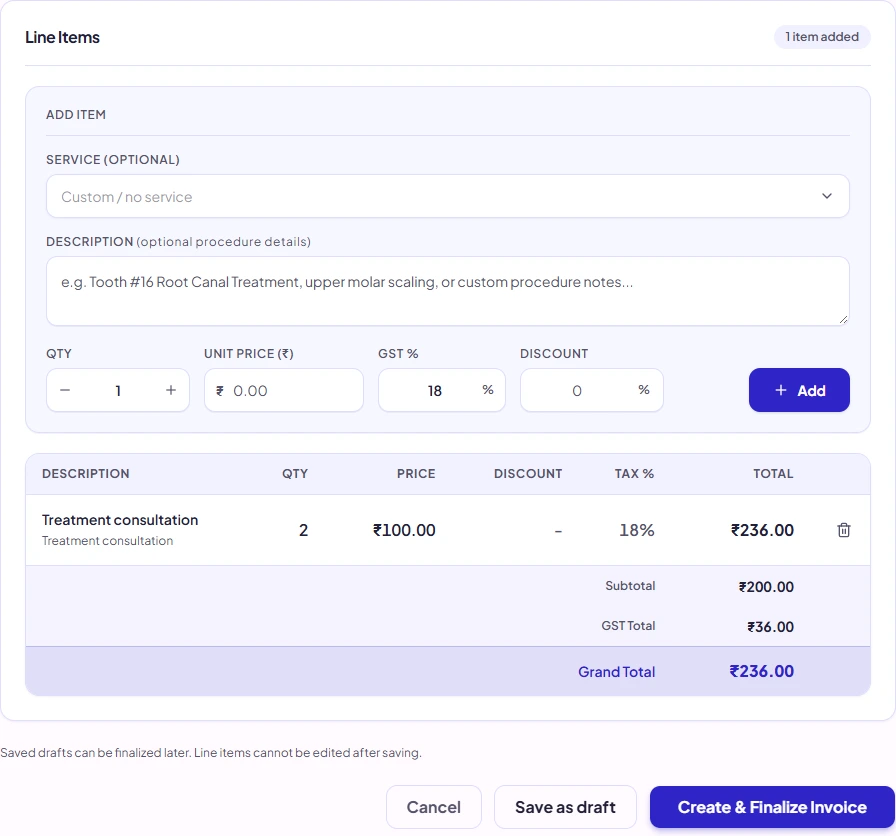
- Add Line Items: Choose clinical procedures from your Services catalog or dispensing items from your Pharmacy inventory.
- Standard clinic fees, duration, and GST tax percentages will populate automatically.
- Draft line items can be removed with one click. Choose Undo in the notification to restore the latest removed item before submitting or leaving the draft.
3. Apply Item or Invoice Discounts
Apply custom discounts or quantity adjustments:
- Item Discounts: Enter a discount percentage (%) or flat rupee deduction (₹) for individual treatments.
- Overall Bill Discount: Enter an overall invoice-level discount if offering package concessions.
- Quantities and subtotals recalculate in real time.
4. Save a Draft or Finalize the Invoice
Review the invoice before saving:
- Verify the line items, Subtotal, GST and Grand Total. Saved line items cannot be edited.
- On Billing > New Invoice, Save as draft stores the invoice without finalizing it and opens its detail page. You can finalize it there later.
- Create & Finalize Invoice opens a confirmation. Choose Finalize invoice to create and lock the invoice for payment, or Keep draft to return to your unsaved form.
- Inline patient and treatment forms use the confirmed finalization flow and remain in their existing patient workflow.
5. Print PDF or Send WhatsApp Invoice
Print tax receipts or deliver via WhatsApp:
- Print PDF: Click Print to produce an official tax receipt complete with clinic branding and a scannable dynamic UPI QR code.
- Send WhatsApp: Click Send WhatsApp to text a direct payment link and receipt PDF straight to the patient's phone.